
How to Add Songs to Clone Hero
Learn how to add songs to Clone Hero on Windows, macOS, Linux and Android, including downloaded and custom songs, the correct folder layout, Scan Songs and quick checks for missing charts.

The five-step answer
Download a chart from a source you trust, extract ZIP/RAR/7z archives, open Clone Hero's default Songs folder, move the complete song folder there, then choose Settings → General → Scan Songs. If it does not appear, check badsongs.txt and the folder depth.
The safest way to find the correct location is the in-game Open Default Songs Folder control because Windows portable mode, normal installs, macOS, Linux and Android do not all use the same path.
Before adding a large song library
Launch Clone Hero once and create a profile before copying thousands of files. Confirm that the game opens, your controller or keyboard works in menus and the default Songs folder can be opened from settings. This separates an installation problem from a custom-song problem.
Start with one known-good chart. A small test tells you whether the path, extraction method and scanner are working. When a test chart appears and plays correctly, add larger packs in batches. Back up existing Songs, Custom and settings folders before moving from an older release or switching between Launcher and standalone installations.
Add downloaded songs step by step
For downloaded or custom songs, do not flatten every file into one giant folder. Keep each song folder intact, record the source and test one chart before importing a full library.
- 1
Download a chart package
Choose a chart from a source with visible title, artist, charter, instrument and difficulty information. Avoid song installers and unknown executable files.
- 2
Extract normal archives
Right-click a ZIP, RAR or 7z file and extract it. Do not move the unopened archive into the Songs folder. An SNG package is different; leave it as SNG when your game workflow supports it.
- 3
Inspect the song folder
Open the extracted folder and look for song.ini, notes.mid or notes.chart, plus audio. If those files are hidden inside another wrapper folder, move the real song folder instead.
- 4
Move it to a song path
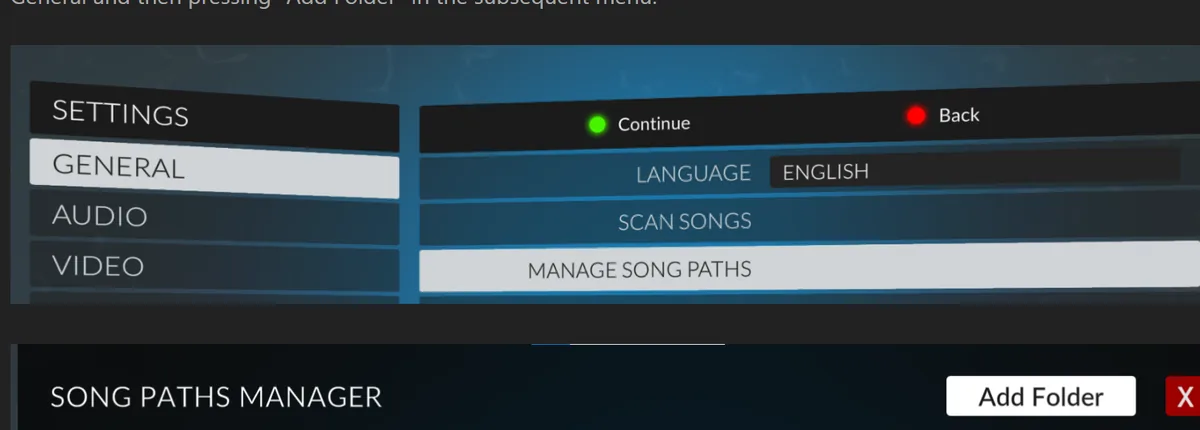
In Clone Hero, open the default Songs folder from Settings. Copy the complete song folder into that location, or into another folder already configured in the song path manager.
- 5
Scan songs
Return to Settings → General and choose Scan Songs. Wait for completion, then search the song list by title or artist.
- 6
Test audio and notes
Open the new song and confirm that preview audio, chart notes and the selected instrument are present. A chart may legitimately support only certain instruments or difficulties.
Where downloaded Clone Hero files go
Clone Hero can scan more than one folder when additional song paths are configured. This is useful if a library is stored on another drive, but the external drive must be connected and the path must remain stable. Changing the drive letter or moving a parent folder can make the entire library disappear until the path is corrected.
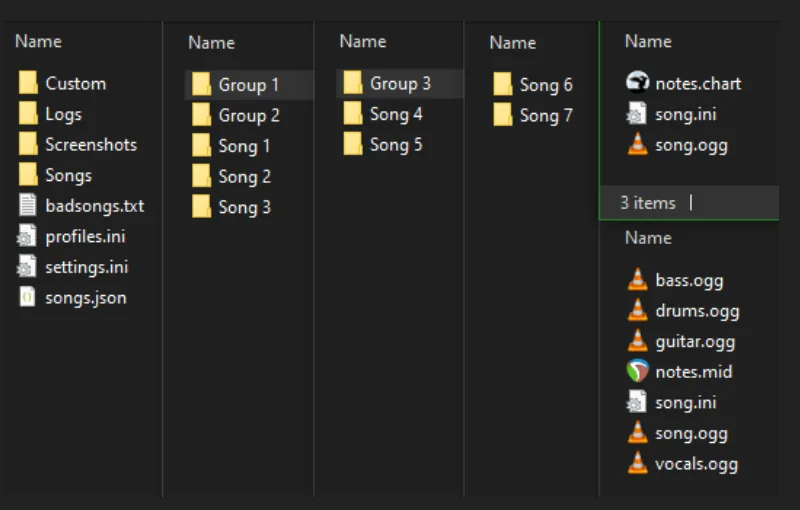
Keep one folder per song. Genre, pack and artist folders can be used as organizational layers, but avoid extreme nesting and confirm that the actual song folder contains its own metadata, chart and audio files.
The Clone Hero song folder should lead directly to song.ini, chart data and audio. If the path contains another ZIP or wrapper directory, the game may not see the song during Scan Songs.
| Setup | Recommended way to locate Songs | Common mistake |
|---|---|---|
| Windows typical install | Use Open Default Songs Folder from Settings | Copying songs beside the launcher instead of the user Songs folder |
| Windows portable mode | Open the folder from the running portable game | Mixing the portable Songs folder with Documents data |
| macOS | Use the in-game folder control and follow the official manual | Placing files inside the app bundle |
| Linux | Open the configured path or inspect the song path manager | Missing read permission or extracting into the wrong user directory |
| Android | Follow the official manual for the current Android storage location | Using an old pre-v1 path from an outdated video |
Scan Songs and read badsongs.txt
Clone Hero does not automatically update the list every time a file is copied. Run Scan Songs after adding, removing or changing charts. The result shows how many songs were scanned and whether any bad songs were detected.
When a song is rejected, Clone Hero writes information to badsongs.txt. Read the reported path and reason. Missing notes, missing audio, malformed metadata, unsupported files or nested archives are more actionable than repeatedly pressing Scan Songs. Fix the specific folder, remove the duplicate or download a clean copy from the chart's original source.
If every song on an external drive disappears, inspect the configured path and drive availability before changing individual charts. If only one song fails, focus on that folder's files and metadata.
When a custom song is missing, compare the configured path with the actual folder, run Scan Songs again and inspect badsongs.txt before downloading a replacement.
- Archive still unopened inside the Songs folder.
- song.ini or notes file missing from the actual song directory.
- Audio filename or format not supported by the chart.
- Song path points to a moved or disconnected drive.
- Duplicate or corrupted chart copied during a large pack install.
Why a downloaded song plays for two seconds
A song that opens for only a moment, has no notes or has no audible track is usually not fixed by moving it to another random folder. Confirm that the selected instrument and difficulty actually exist. Then inspect the audio and notes files, review badsongs.txt and try a fresh copy of that exact chart.
Do not assume that every result for a song title is identical. Another charter's version may use a different audio layout or chart format. Remove the broken copy before testing a replacement so duplicate metadata does not make it unclear which version loaded.
For more failure patterns, continue to the Clone Hero troubleshooting guide.
A repeatable way to add songs to Clone Hero
The most reliable way to add songs to Clone Hero is to treat every download as a small import: keep it outside the live library, extract and inspect it, copy the real song folder, scan, and test one chart. When that batch works, record its source and move to the next. This repeatable process is slower than copying an unknown multi-gigabyte archive once, but it is much faster than diagnosing thousands of mixed files later.
If you regularly add songs to Clone Hero, reserve a temporary staging folder and a separate backup. The staging folder holds new archives until they pass inspection; the backup preserves working content before changes. Neither folder should be added as an active song path. Only verified, extracted song folders belong in the library that Clone Hero scans.
Adding songs to Clone Hero FAQ
Can I put ZIP files directly in Clone Hero?
Normally no. Extract ZIP, RAR and 7z files until you reach the song folder. SNG is a separate one-file song package and should not be treated as an ordinary ZIP.
Where is the Clone Hero Songs folder?
Use Open Default Songs Folder inside Clone Hero settings. The path changes by platform and installation mode, so the in-game control is more reliable than copying an old path from a video.
Do I need to restart after adding songs?
Run Scan Songs in Settings → General. Restarting alone does not replace the scan.
Why is my song listed as bad?
Read badsongs.txt for the exact path and reason. Common causes are missing notes, missing audio, malformed metadata, nested archives and damaged files.
Can songs stay on an external drive?
Yes, when the folder is added as a song path and the drive remains connected at a stable location. Back up the library and avoid changing the drive letter.
How do I add more songs after the first scan?
Copy the new extracted folders into a configured song path and run Scan Songs again. Add large packs in batches so failures are easier to isolate.
How do I add custom songs to Clone Hero?
Extract the chart if needed, keep song.ini, chart data and audio together in the correct song folder, place it in a configured Songs path and run Scan Songs.
Where do downloaded songs go in Clone Hero?
They go in the Songs folder or another path configured by the game. The final path should expose the actual song folders, not an unopened archive or an extra wrapper directory.
Sources and verification
Facts and download destinations were checked on August 12, 2026.